What you will learn
- Know what the diagnosis checks in each of the nine themes, from the legal notice to photo weight.
- Read the grade per theme and the overall A to E grade without being intimidated.
- Use the priority list and the free tool recommended for each point.
- Save the report as a PDF and pass it on to the right person.
Module 1
Understand the complete diagnosis
Nine themes in a single report
The complete diagnosis checks six technical themes (access and security, speed, phones, search engines, protection, e-mail) and adds three more:
- Access and security: the site responds, HTTPS and certificate are valid, there is one official address.
- Speed: response time, page weight, compression, and now the weight of your first photos.
- On phones: the page adapts to small screens.
- Presence in search engines: title, description, sitemap, nothing hiding the site.
- Site protection: the server's security headers.
- Domain e-mail: mail server, SPF and DMARC.
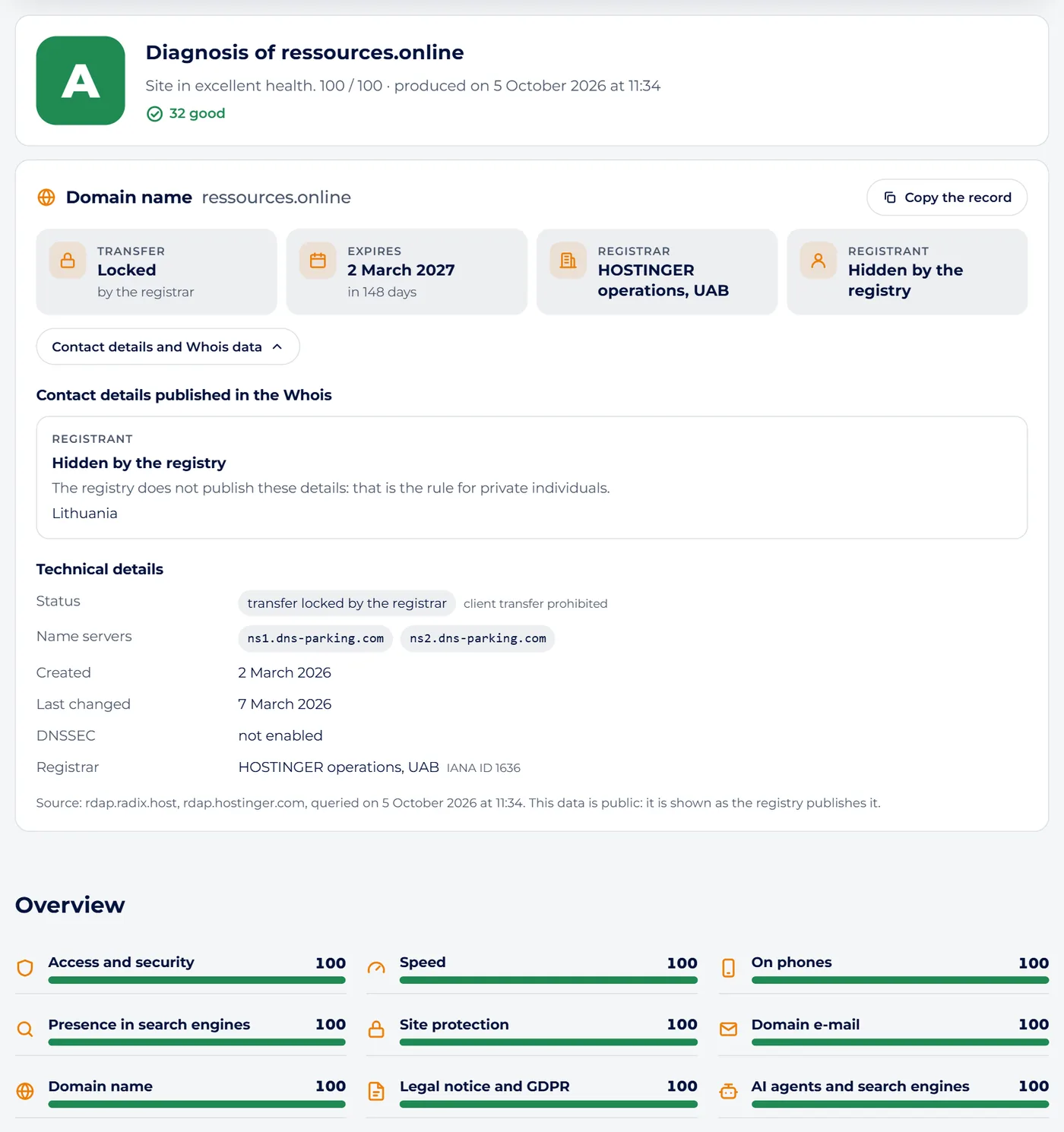
- Domain name: its expiry date, the transfer lock, and what Whois shows to everyone.
- Legal notice and GDPR: what the law requires you to display, and the trackers subject to consent.
- AI agents and search engines: can the site be read and cited by AI assistants.
This last theme is new. More and more people ask ChatGPT, Claude or Perplexity for “a carpenter near Munster” rather than Google. To be cited in the answer, your site must first be readable. So the diagnosis checks that robots.txt does not block their crawlers (GPTBot, ClaudeBot, PerplexityBot, Google-Extended), that an llms.txt file presents the site at its root, in plain text written for these assistants, and that the home page contains schema.org structured data, a few lines of code stating who you are, your address, your opening hours. No llms.txt or no structured data means an orange point; blocking AI crawlers remains a legitimate choice, reported for information only.
The “Domain name” theme queries the registry of the extension (Afnic for .fr, for example). It gives the expiry date of the name, tells whether its transfer to another registrar is locked, and copies what Whois shows to everyone: registrar, name servers, the registrant's contact details when the registry publishes them. An expiry date less than thirty days away gives an orange point. Some extensions, such as .de or .eu, do not give the expiry date.
In the report, every point to fix is explained on the spot: what it means, then what to do. The following sections go through these themes.
HTTPS, certificate and redirects
HTTPS encrypts the traffic between the visitor and the website: nobody can read or alter what passes through, such as a contact form. Without it, browsers show “Not secure” and Google ranks the site lower.
HTTPS relies on a certificate, a kind of ID card for the website issued by a recognised authority. It has an expiry date: since March 2026 a certificate lasts at most 200 days, and that limit will keep shrinking in the coming years. The free Let's Encrypt certificate, offered by most hosts, renews itself: just make sure automatic renewal is switched on.
Finally, a website should have one single official address. The http:// version, and the forms with or without www, should all lead to it through a 301 redirect, meaning a permanent forwarding. Otherwise Google sees several identical sites.
Speed: what keeps visitors waiting
A visitor in a hurry soon gives up on a slow page, especially on a phone. Three things matter most:
- Server response time: the delay before the first byte of the page arrives. Under 0.6 seconds is good. Beyond 1.5 seconds the server is slow: a cache (a ready-made copy of the pages) or a better hosting plan helps.
- Page weight: the page code, without images, should stay under 600 KB. An overloaded page builder quickly bloats it. Photos add weight too: remember to compress them before uploading.
- Compression: gzip or Brotli shrink the code sent over the network, often by a factor of four. It is a simple setting at your host.
A modern protocol, HTTP/2 or HTTP/3, also helps: it loads several files at once instead of waiting for them one by one.
Phones and Google: readable and visible
Most visits now happen on phones, and Google looks at the mobile version of a website first. A phone-friendly site contains a technical line, the viewport tag, that lets it fit the width of the screen. Without it, the page shows up tiny.
For Google, a few basics are enough to get started:
- a page title of 15 to 65 characters, the clickable text in the results;
- a description of 50 to 160 characters, the short text below it;
- a single main heading (H1) per page;
- a sitemap, the list of your pages for Google's robots.
Watch out for the classic trap: the noindex tag, which asks Google not to show the page. It is used while the site is being built, then people forget to remove it, and the site stays invisible.
Server and e-mail protection
A server can send the browser safety instructions called security headers. Our tool checks six of them. For example, HSTS forces the browser to always use HTTPS, X-Frame-Options stops your site from being shown inside another one to trick visitors, and CSP limits which scripts may run on the page. Your host or a security plugin can switch them on.
Another good habit: do not reveal the exact version of the server software, as it helps attackers target known flaws.
Finally, a website lives with its domain name, and therefore with its e-mail. SPF and DMARC, two DNS settings, make it harder to send fake e-mails in your name, and help genuine ones stay out of spam. The DNS tutorial explains them in detail.
Legal notice, privacy policy and cookies
Every French website must say who publishes it and who hosts it: that is the legal notice. As soon as it collects data, through a form, audience measurement or embedded videos, it must also explain what it does with them in a privacy policy. An online shop adds terms of sale, and a way to get in touch must stay visible.
The diagnosis looks for these links on the home page, then checks that the “Legal notice” and “Privacy policy” pages actually respond: a link to a deleted page is reported as an error.
It then reads the page code to spot third-party services: Google Analytics, Google Tag Manager, Meta pixel, Hotjar, Microsoft Clarity, YouTube videos, Google Maps, Google Fonts, reCAPTCHA, AdSense advertising. Several of them set trackers and require consent before being loaded. If the tool finds some without recognising a common consent tool (tarteaucitron, Axeptio, Cookiebot, Complianz, CookieYes, Didomi, Borlabs and about fifteen others), it shows a red point. Google Fonts loaded from Google's servers earn an orange point: every visitor's IP address is sent to them.
Photo weight, an invisible brake
A nice photo taken with a recent phone often weighs 3 to 5 MB. Uploaded as is, it slows down the whole page, especially on 4G in the countryside. The diagnosis examines the first eight images of the home page. It does not download them: it only asks the server for their weight and format, through the HTTP headers, the identity card that travels with every file.
Three thresholds count towards the grade, in the “Speed” theme:
- an image over 300 KB is an orange point, over 1 MB a red point;
- more than 2 MB for the first images alone, an orange point;
- no image in a modern format, WebP or AVIF, a simple note: these formats weigh 30 to 50% less than JPEG at equal quality.
The remedy is simple and free: run your photos through the photo compressor before uploading them. It reduces their dimensions, converts them to WebP and removes GPS data.
The grade per theme and the overall grade
The overview gives each of the nine themes a score out of 100, with a coloured bar. Each theme starts at 100: a red point removes 30 points, an orange point 12. The bar is green from 75, orange from 50, red below. At a glance you see where the site falls short: it can be excellent technically and red on the legal notice.
The overall grade, the big letter at the top of the report, follows another rule: you start at 100, each red point costs 12 points and each orange point 5. A from 90, B from 75, C from 60, D from 45, E below. A plain verdict goes with it, for example “Decent site, but several points deserve attention.”
The diagnosis checks many things: an average grade is common, there are simply more chances of finding a flaw. Green points and simple notes cost nothing.
The priorities and the tools that help
The “Your priorities” list is the most useful part of the report. It takes the red points first, then the orange ones, in theme order, and stops at twelve points to stay readable. Each point recalls its theme, explains why it matters, then shows “Recommended tool:” followed by the free tool that helps to fix it and a link to its mini-course:
- missing SPF, DMARC or mail server: the DNS lookup;
- legal notice, privacy policy, terms of sale, contact, cookies or Google Fonts: the legal notice and privacy policy generator;
- images too heavy: the photo compressor;
- missing site icon: the favicon generator;
- missing llms.txt or structured data: the diagnosis itself and this mini-course;
- everything else (HTTPS, speed, phones, Google, protection): the “What it means” and “What to do” explanations, in the report itself.
So you never have to wonder where to start: follow the list in order, one point at a time.
Key takeawayThe complete diagnosis checks the technical side (HTTPS, speed, phones, search engines, protection, e-mail), compliance (legal notice, privacy policy, cookies), photo weight and the state of the domain name. Follow the “Your priorities” list in order: each point is linked to a free tool.
Words to know
- HTTPS
- The encrypted version of the web's protocol. The padlock in the address bar shows it is active.
- Certificate
- The file that proves a website's identity and enables HTTPS. It expires and must be renewed, ideally automatically.
- 301 redirect
- A permanent forwarding from one address to another. It also tells Google which address to keep.
- Server response time
- The delay before the first byte of the page reaches the browser (TTFB, Time To First Byte). It depends mainly on hosting and caching.
- Viewport tag
- A line in the page code that lets it adapt to the width of phone screens.
- Sitemap
- A map of the website: a file listing its pages so that Google finds them all.
- Noindex
- An instruction asking search engines not to show a page in their results.
- Legal notice
- The page that identifies the site's publisher (name, address, contact) and its host. French law requires it for every website, associations included.
- Privacy policy
- The text that explains which personal data the site collects, why, for how long, and how to exercise your rights. The GDPR requires it as soon as there is a form or audience measurement.
- GDPR
- The European regulation on personal data protection, applied since 2018. In France, the CNIL enforces it.
- Tracker
- A cookie or a script (pixel) that follows the visitor to measure audience or target advertising. Most of them require consent before being loaded.
- Consent tool
- The cookie banner that asks for the visitor's agreement and holds back the trackers until they answer. The diagnosis recognises the most widespread tools.
- SPF and DMARC
- Two DNS settings of your domain name that say who may send e-mail in your name, and what to do with fakes.
- WebP
- A modern image format, read by all current browsers, that weighs 30 to 50% less than JPEG for the same quality.
- llms.txt
- A small text file placed at the site root (example.com/llms.txt) that presents your activity and your main pages to AI assistants, following the llmstxt.org convention. It starts with a heading and reads like a business card.
Module 2
Diagnose your website step by step
Type the address and run the diagnosis
- Open the complete website diagnosis.
- Type the site's address in the field, for example
www.example.com, withouthttps://, then press “Run the diagnosis”. - Wait 20 to 40 seconds.
- Our server visits the home page like a browser, looks up the domain's DNS, opens the “Legal notice” and “Privacy policy” pages it found and asks for the weight of the first images.
- The result is kept for 5 minutes, then deleted.
TipTo see a report without typing anything, tap the example offered below the field: ressources.online.
Read the grade and the overview
- The report opens with a large letter from A to E, the plain verdict and the score out of 100, followed by three counters: good points, points to improve and points to fix.
- Do not stop at the letter: a C with two easy red points beats a B with ten small flaws.
- Just below, the “Overview” shows the nine themes with their score out of 100 and a coloured bar.
- Look for the red and orange bars: those are the themes where the site has the most to gain.
Screenshot : Complete website diagnosis Go through your priorities
- The numbered “Your priorities” list ranks the points to deal with, from most to least urgent: red ones first, then orange ones.
- Under each point, a sentence explains the problem, and the “Recommended tool:” line takes you straight to the free tool that helps, then to its mini-course.
- If the list says “Nothing to fix: this site is in excellent shape.”, keep the report as a reference and come back in three months.

Screenshot : Complete website diagnosis TipWrite on the report who takes care of which point: it stops two people fixing the same thing.
Look at the details, theme by theme
- Further down, the “The details, theme by theme” section lists every point, including those that are fine, with each theme's score.
- A green tick means all is well, an orange triangle a point to improve, a red cross a point to fix, and a small “i” a simple note with no effect on the grade.
- Tick “Only show the points to improve” to keep only your to-do list.
- This filter also applies to the PDF report.
Save the report as a PDF and pass it on
- Press “Save as PDF”: your browser's print window opens.
- In the printer list, choose “Save as PDF” (or “Microsoft Print to PDF” on Windows), then confirm.
- On iPhone, use the share button, then “Print”, and spread two fingers on the preview to open it as a PDF.
- The report carries the date, the site name, the grade, the priorities with the address of each recommended tool, and a reminder of the diagnosis's limits.
- This PDF is meant to be passed on: to the webmaster or the provider who looks after the site, to the association's board before the next meeting, to your business partner.
- The “Copy the link to this diagnosis” button copies an address that runs the same check again, handy in an e-mail or a message.
TipName the file with the site name and the date, for example diagnosis-jardins-de-clara-2026-09.pdf: you will easily compare it with the next one.
Fix, then run the diagnosis again
- Deal with the priorities one by one, starting with the first.
- Many take only a few minutes: generate a legal notice and link it in the footer, install a consent tool, add an SPF record at the registrar, compress the photos before uploading them again.
- When it is done, press “Run again”: the previous result is kept for 5 minutes, this button forces a new check.
- Keep the tool's limits in mind: it examines the home page and the linked pages, without running scripts; a home-made cookie banner may escape it; and it replaces neither legal advice nor a full security audit.
TipRun a diagnosis every three months and after every change of theme, plugin or host.
All done: over to you.
Module 3
Three everyday situations
The association that never had a legal notice
Les Jardins de Clara, a community garden association in Colmar, gets a C. The report shows two red points in “Legal notice and GDPR”: no link to a legal notice on the home page, and no privacy policy even though the site has a membership form. An orange point comes on top: no SPF record for the association's e-mail. The secretary follows the priorities: she generates both pages with the legal notice generator, links them in the footer, then adds the SPF at the registrar by following the DNS lookup mini-course. She saves the new report as a PDF for the board: the site has moved up to A.
The craftsman whose shop drives customers away
A carpenter in the Munster valley sells his cutting boards on his website. Grade D. In red: Google Analytics and a Meta pixel loaded without a recognised consent banner, a 2.4 MB photo on the home page, and no privacy policy. In orange: a shop without a link to the terms of sale, and no DMARC. He switches on the consent tool offered by his shop plugin, writes his terms of sale and privacy policy and links them in the footer, then runs all his photos through the compressor: the home page weighs three times less. Two weeks later, the diagnosis shows B, and his customers on phones no longer leave before seeing the prices.
The blog that did not know it collected data
Mathieu runs a hiking blog about the Vosges mountains, with no form and no advertising. He thinks he has nothing to declare. Yet the diagnosis shows two red points: standard YouTube videos, hence trackers, without a consent banner, and no link to a privacy policy. In orange: Google Fonts loaded from Google's servers. He switches his videos to YouTube's “no-cookie” mode (youtube-nocookie), which the tool recognises and which needs no consent, hosts the fonts on his own site through a plugin, and publishes a short privacy policy. Three fixes, no banner to install, and the blog goes from C to A.
Common mistakes
- Believing that an association or a blog needs no legal notice: the law requires one for every website, whatever its size.
- Installing a cookie banner that shows up but holds nothing back: trackers must wait for consent, not just announce it.
- Uploading phone photos without compressing them: a single 3 MB image is enough to make the page slow on mobile.
- Reading the letter without reading the priorities: two sites graded C can have very different problems.
- Taking the report for a compliance certificate: it reads the code without running it and does not replace legal advice.
- Forgetting the noindex tag after launch: the site stays invisible in Google, however good it is.
- Letting http:// and https://, or the addresses with and without www, coexist without redirects: Google sees several identical sites.
The essentials
- Nine themes, a score per theme and an overall grade from A to E: the overview shows where the site has the most to gain.
- The “Your priorities” list ranks the points to fix and links each one to a free tool and its mini-course.
- “Save as PDF” opens the print window: choose “Save as PDF” and pass the report on to whoever looks after the site.
- The tool examines the home page without running scripts: a solid starting point, not legal advice.
- To be cited by ChatGPT, Claude or Perplexity, let their crawlers read the site, add an llms.txt file and structured data.
Test yourself
A few questions to check that everything is clear.