What you will learn
- Tell download, upload and response time apart, and convert Mbit/s into MB/s.
- Spot an unstable connection from its jitter and its response under load.
- Know how much speed video calls, remote work or 4K television really need.
- Run a reliable test, compare Wi-Fi, cable and mobile data, and add to the speed map.
Module 1
Understand Internet speed in 5 minutes
Speed: a two-way pipe
Speed (or bandwidth) is the amount of data that flows through your connection every second. Think of a water pipe: the wider it is, the faster the bucket fills. And this pipe works in both directions.
- Download: what comes in. A web page, a film, a software update.
- Upload: what goes out. Photos you send to the family, your picture during a video call, an online backup.
The two figures are often very different. A typical ADSL line receives 8 to 15 Mbit/s but sends only one. Fibre often exceeds 300 Mbit/s down, with somewhat less upload depending on the plan. For watching TV, download is what matters. For remote work and video calls, upload becomes just as important.
Mbit/s or MB/s: the unit trap
Providers and speed tests count in megabits per second (Mbit/s, sometimes written Mbps). Your computer, on the other hand, shows file sizes and download speeds in megabytes (MB).
One byte is 8 bits. So you need to divide by 8 to go from one to the other:
- 100 Mbit/s is about 12.5 MB/s;
- 1,000 Mbit/s (“1 gig” fibre) is about 125 MB/s;
- 8 Mbit/s on ADSL is 1 MB/s.
Example: a 500 MB holiday video arrives in roughly 40 seconds on a 100 Mbit/s line. If your browser shows “11 MB/s” while you pay for 100 Mbit/s, all is well: you are not being cheated, that is just the conversion, minus a little technical overhead.
Response time, jitter and load
Speed is not the whole story. Response time, also called latency or ping, is how long a round trip between your device and a server takes, in milliseconds (ms). On fibre it is often around 5 to 20 ms, on ADSL 20 to 50 ms, on 4G 30 to 70 ms. The lower it is, the more natural video calls and games feel.
Jitter measures how steady that response time is. If data arrives in 10 ms one moment and 90 ms the next, the sound of your call breaks up, even with good speed.
Finally, response under load is the response time measured while the line is saturated. On many routers it shoots up as soon as a big file downloads: this is bufferbloat, queues that fill up too much. The result: your video call freezes whenever someone starts an update in the next room.
Wi-Fi, cable, 4G, 5G: why results change
The same subscription can give very different figures depending on how you are connected.
- A network cable (Ethernet) plugged into the router gives the most faithful measurement of your line.
- Wi-Fi loses speed with distance, thick walls, floors and the neighbours' networks. Losing half the speed two rooms away is common.
- 4G and 5G depend on the antenna, where you are standing, the time of day and how many people are around you. 5G can be very fast near an antenna, but it varies a lot.
Other reasons make one test differ from the last: evening peak time, other devices downloading at the same moment, an old computer, or the distance to the test server. One test is therefore never enough: run two or three, at different times.
How much speed for what?
Here are benchmarks for one person, the same ones our tool uses:
- Browsing and e-mail: 1 Mbit/s is enough.
- HD video calls: 3 Mbit/s down and 1.5 Mbit/s up.
- HD film streaming: 8 Mbit/s.
- Remote work with screen sharing: 10 Mbit/s down and 3 Mbit/s up.
- 4K television or film: 25 Mbit/s.
- Online gaming: little speed (5 Mbit/s), but a response time under 80 ms.
These needs add up when several people share the line. In a home where one person watches a 4K film while another works remotely, allow at least 50 Mbit/s down and 5 Mbit/s up. For a holiday let or a small business, leave some margin: what is usually missing is upload and stability, not download.
Key takeawaySpeed is measured in Mbit/s (divide by 8 to get MB/s). A good connection also responds quickly and stays steady, even when the line is busy.
Words to know
- Mbit/s
- Megabits per second, the unit of speed. 8 Mbit/s equals 1 MB/s, the unit computers display.
- Response time (ping)
- How long a round trip between your device and a server takes, in milliseconds. The lower it is, the snappier the connection feels.
- Jitter
- How much the response time varies from one measurement to the next. High jitter makes call audio and video break up.
- Bufferbloat
- A rise in response time when the line is saturated, caused by overfilled queues in the router or the network.
- Router
- The box supplied by your provider that connects your home to the Internet and broadcasts Wi-Fi. In France it is called a “box”.
- Median
- The middle value of a series of measurements: half the results are above it, half below. Extreme values distort it less than an average.
Module 2
Measure your connection step by step
Say how you are connected
- Open the connection test.
- Below the gauge, the section “You are connected through:” offers four choices: Wi-Fi, Cable, 4G or 5G.
- Tap the one that matches your situation.
- In the “Room or place (optional)” box, you can write where you are, for example “living room” or “upstairs bedroom”.
- This will help you compare rooms later.
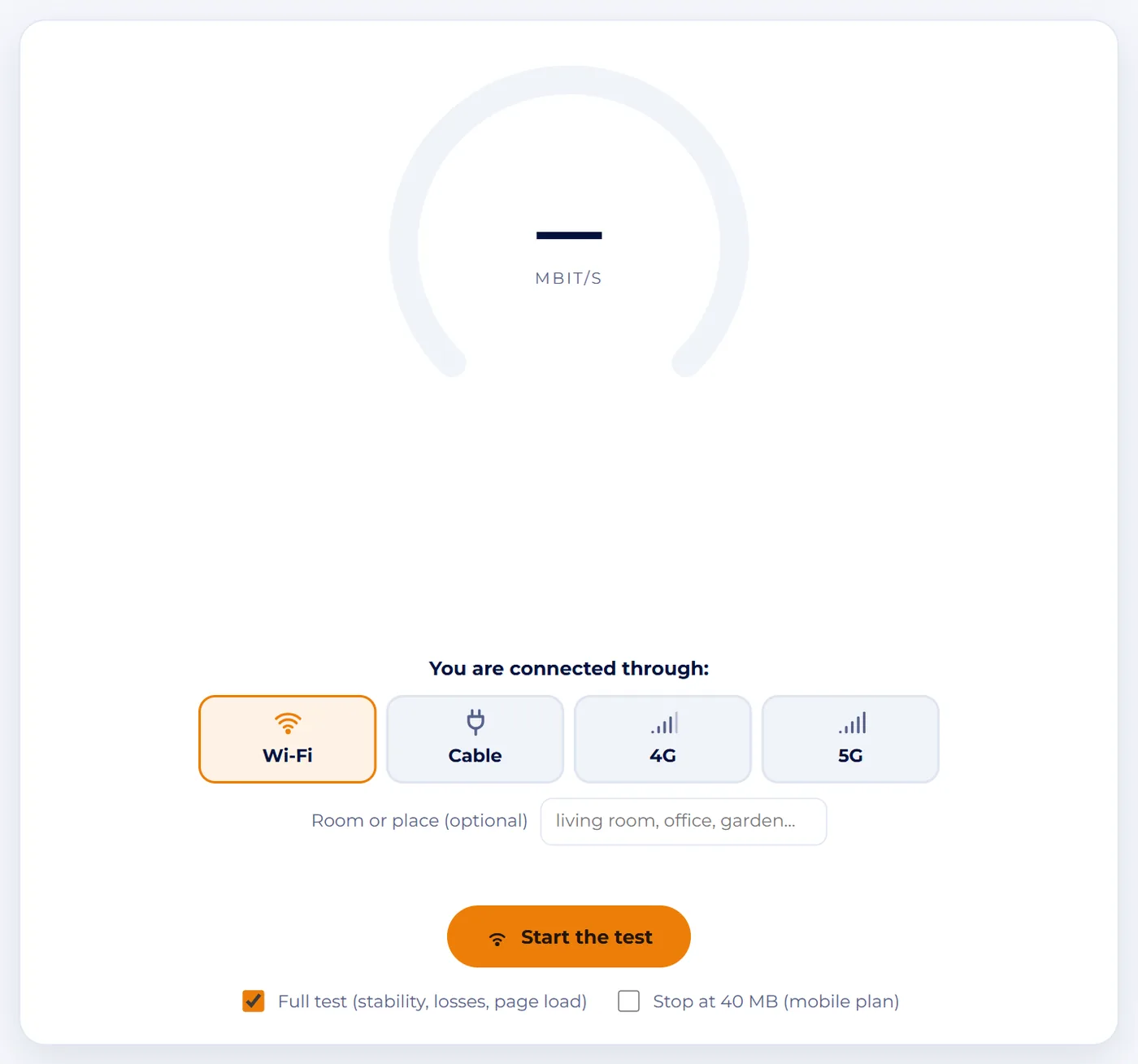
Screenshot : Connection test TipOn a phone, to measure 4G or 5G, turn off Wi-Fi first: otherwise Wi-Fi is what gets measured.
Pick the options and start the test
- Two boxes sit below the button.
- “Full test (stability, losses, page load)” is ticked by default: it adds the response under load, lost requests and the time to load a 24-file page.
- “Stop at 40 MB (mobile plan)” ends the test early to spare your data allowance; it ticks itself on 4G and 5G.
- Then press “Start the test”.
- The gauge measures response time, then download, then upload.
- Leave everything alone meanwhile.
- The “Stop” button interrupts the measurement if needed.
TipIf many people are testing at once, a message puts you in a queue: the test starts on its own, no need to click again.
Read the grade and the figures
- The result comes with a letter from A to E and a verdict, from “Excellent connection” to “Difficult connection”.
- The grade combines speed, response time and stability.
- Below, each figure has a badge (“excellent”, “good”, “fair”, “low”…): Download and Upload in Mbit/s, Response time and Stability (jitter) in ms.
- With the full test you also see Response under load: if it is much higher than the normal response time, your router suffers from bufferbloat.
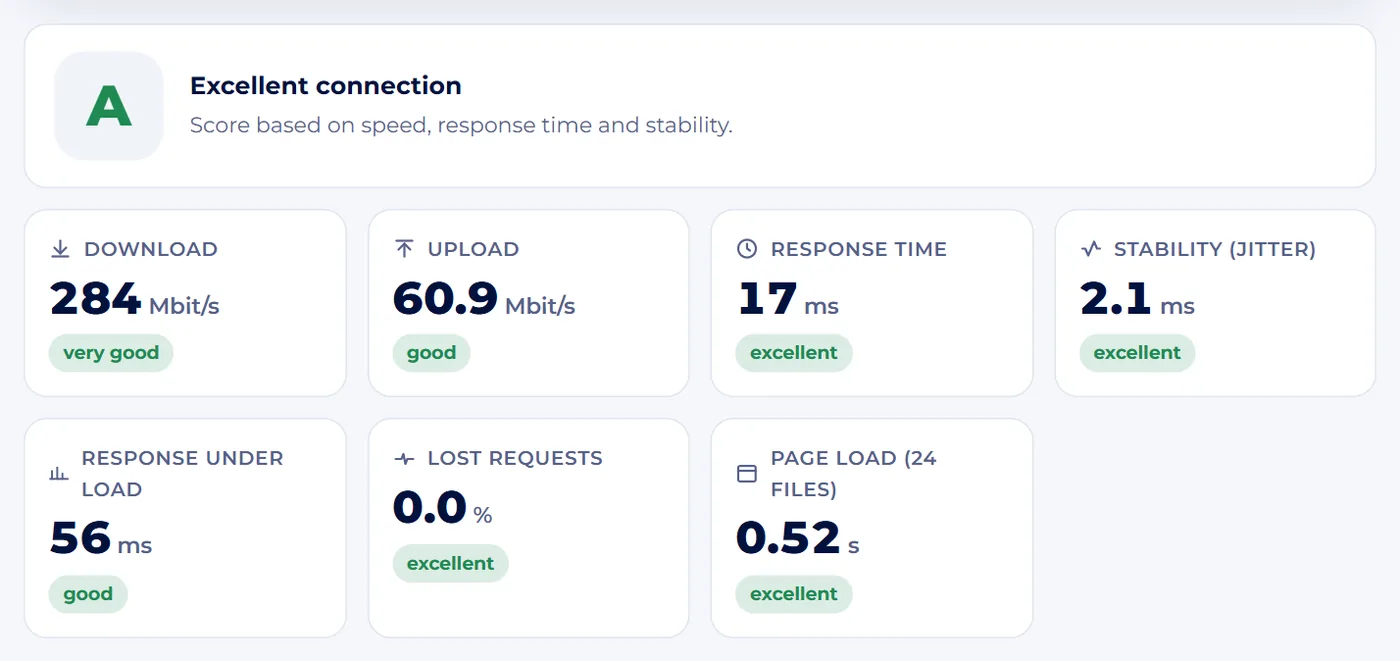
Screenshot : Connection test Check what your connection can do
- The section “What your connection can do” turns the figures into everyday uses: browsing, HD video calls, films, remote work with screen sharing, 4K, online gaming, several people at once.
- Each line recalls the speed required and shows, with a tick or a cross, whether your line is up to it.
- “Technical details” then lists your public IP address, your provider's network name and the connection timings.
- To keep a record, use “Copy summary” or “Save as image”, handy for sending to your provider.
TipYour tests stay in your browser: the section “Your last tests” lists them, and the “Clear history” button deletes them.
Compare Wi-Fi, cable and mobile data
- Run the test again with another type of access: plugged in with a cable, or with Wi-Fi off on 4G or 5G.
- The table “Wi-Fi, cable, 4G, 5G: the comparison” sums up your tests by access type, with their median values.
- As soon as you have two access types, it tells you in plain words which is faster, which responds best for video calls, and how much speed Wi-Fi costs you compared with the cable.
- To find rooms where Wi-Fi weakens, run one test next to the router and another in the furthest room, changing the name in “Room or place” each time.
Add your result to the map (optional)
- Below the results, the panel “Add your result to the connection map” lets you contribute to a map of real-world speeds in France.
- Enter your French postcode, choose your provider (or “I don't know”), tick the consent box, then press “Add to the map”.
- Only the postcode, provider, access type and speeds are stored: no name, no IP address.
- A département only appears once it has 5 entries.
- The map, at the bottom of the page, shows median speeds by département, with the filters “Fixed (Wi-Fi, cable)” and “Mobile (4G, 5G)”, plus a ranking by provider.
TipNothing is sent without your consent: if you leave the box unticked, your result stays in your browser only.
All done: over to you.
Module 3
Three everyday situations
Video calls that freeze when working from home
Marc works from home two days a week. His speed is good, 200 Mbit/s, yet his video calls often freeze. The test shows a response time of 15 ms at rest, but a response under load of 450 ms: that is bufferbloat. On meeting days he plugs his laptop in with a cable, asks the family to postpone big downloads, and checks his router's settings for a priority option (often called QoS). He then tests again to measure the improvement.
The holiday cottage Wi-Fi does not reach the bedrooms
At the Gîte des Trois Épis, guests complain about slow Wi-Fi. The owner runs one test next to the router, typing “hall” as the place, then another in the far bedroom, “room 3”. The comparison shows 180 Mbit/s on one side and 12 Mbit/s on the other. The line is not to blame: it is the Wi-Fi range. A repeater or a mesh Wi-Fi system placed halfway solves the problem. She tests again in the bedroom to make sure.
Choosing between ADSL and a 4G or 5G router
In a village without fibre, the garden centre Les Jardins de Clara is thinking of replacing its ADSL with a 4G or 5G router. The manager runs the test on ADSL, then on his phone on 5G with Wi-Fi off, at several times of day. He also checks the connection map for median mobile speeds in his département, and the official French site monreseaumobile.arcep.fr for coverage. Verdict: 5G is three times faster, but less steady. He keeps these figures to negotiate with providers.
Common mistakes
- Testing on Wi-Fi at the bottom of the garden, then blaming the provider: to judge the line, test near the router or with a cable.
- Mixing up Mbit/s and MB/s: a download shown at 12 MB/s really does match a line of about 100 Mbit/s.
- Trusting a single test: repeat the measurement two or three times, at different hours.
- Leaving a backup or an update running during the test: other devices share the same line.
- Unticking the 40 MB limit on 4G with a small data plan: a full test can use a lot of data.
The essentials
- Download matters for watching, upload for sharing and for video calls.
- Divide Mbit/s by 8 to get MB/s.
- A low, steady response time, even under load, matters as much as speed for video calls.
- For a fair measurement: cable or close to the router, one active device, several tests at different times.
Test yourself
A few questions to check that everything is clear.