What you will learn
- Understand what a QR code contains and how a phone reads it.
- Tell a static QR code from a “dynamic” one that can suddenly stop working.
- Create, test and print a Wi-Fi QR code or a contact card.
- Spot a fake QR code before you scan it.
Module 1
QR codes explained in 5 minutes
A barcode in two dimensions
The QR code was invented in 1994 by the Japanese company Denso Wave to track car parts. “QR” stands for Quick Response. The barcode on a packet of biscuits is read in one direction only; a QR code is read both across and down. That is why it can hold far more information: up to a few thousand characters.
The three large squares in the corners are markers. Thanks to them, the phone finds the code even when it is tilted or upside down. The rest is a grid of small black and white squares, called modules, that spell out the text. Some of these modules are spare: if the code is slightly stained, scratched or folded, the phone can still rebuild the information.
How your phone reads it
Since around 2017, the camera on most smartphones recognises QR codes on its own, with no app to install. On an iPhone, open the camera and point it at the code: a yellow message appears. On Android, use the camera or Google Lens.
When you scan, the phone does not download anything: it reads the text hidden in the squares, then offers the matching action. A web address opens the browser, a number offers to call, a contact card offers to save it. For Wi-Fi, the text looks like this: WIFI:T:WPA;S:Holly-Cottage;P:password;;. The phone finds the security type (T), the network name (S) and the password (P), then offers “Join network”.
One important consequence: anyone who scans the code can read the password.
Static or “dynamic”: the subscription trap
A static QR code holds the information itself: the Wi-Fi name, your number, your website address. It works with no account and no expiry date. That is what our generator makes.
Many websites offer dynamic QR codes instead. The code then only holds a short address owned by the provider, which forwards visitors to your page. The upside: you can change the destination without reprinting, and count the scans. The downside: everything depends on that provider. If the free trial ends, you forget to pay or the company closes down, your menus, flyers and signs already in print lead to an error page or an advert.
To stay flexible without a subscription, point a static QR code to a page on your own website: you change what is on the page, not the code.
The Wi-Fi QR code: name, password, security
Three pieces of information are enough. The network name (or SSID) and the password are printed on the label of your router. Copy every capital letter exactly: to a phone, “MyNetwork-A1b2” and “mynetwork-a1b2” are two different networks.
The security type is almost always WPA2 or WPA3: the “WPA / WPA2 / WPA3” option covers both. WEP is a very old system that can be cracked in minutes: if your router still uses it, change that setting. “None” only applies to open networks with no password.
For a holiday let, a waiting room or a club, it is better to turn on your router's guest network. Visitors get Internet access but cannot see your computers or your printer. And if the password gets passed around too much, you change it without touching your own network.
Printing it well, and watching out for fakes
A QR code scans best as dark on a light background, with a white margin all around. A simple rule: allow about 1 cm of width for every 10 cm of reading distance. On a table, 3 cm is enough; on a poster read from 2 metres away, plan for 20 cm. Avoid glossy surfaces, which cause reflections.
Scammers use QR codes too. They stick fake labels on parking meters, car chargers or posters to send you to a fake payment site. This is called quishing, or QR code phishing. Before paying, check whether the code is a sticker placed on top of another one, read the address your phone shows, and prefer the official app or paying on the spot. More advice from the UK's National Cyber Security Centre.
Key takeawayA QR code is just text written in small squares. Prefer a static code, which depends on no subscription, and always read the address shown before you act.
Words to know
- QR code
- A square, two-dimensional barcode that a phone camera can read. “QR” stands for “Quick Response”.
- Module
- Each of the small black or white squares that make up a QR code.
- Static QR code
- A code that holds the information itself. It never expires and depends on no service.
- Dynamic QR code
- A code that holds a redirect address run by a provider. It stops working if that service shuts down or starts charging.
- SSID
- The technical name of a Wi-Fi network: the one shown in your phone's list of networks.
- WPA2 / WPA3
- Today's protection systems for Wi-Fi networks. The much older WEP is no longer safe.
- Guest network
- A second Wi-Fi network offered by most routers, meant for visitors and kept apart from your own devices.
- Quishing
- A scam that uses a fake QR code to lead to a fraudulent website. The word blends “QR” and “phishing”.
Module 2
Create your Wi-Fi QR code step by step
Open the generator and choose the type
- Open the QR code generator.
- At the top there are four tabs: Wi-Fi, Link, Phone and Contact.
- Tap Wi-Fi.
- No sign-up is needed.
- Everything is computed on your device: the password is not sent anywhere.
Enter the network name and password
- In Wi-Fi network name, copy the name printed on the router's label, for example “Holly-Cottage”.
- In Password, type the Wi-Fi key.
- Tap the eye icon to show what you type and check every character.
- Leave Security on “WPA / WPA2 / WPA3”.
- Only tick Hidden network if your network does not appear in the list of networks.
- The QR code is drawn on the right as you type.
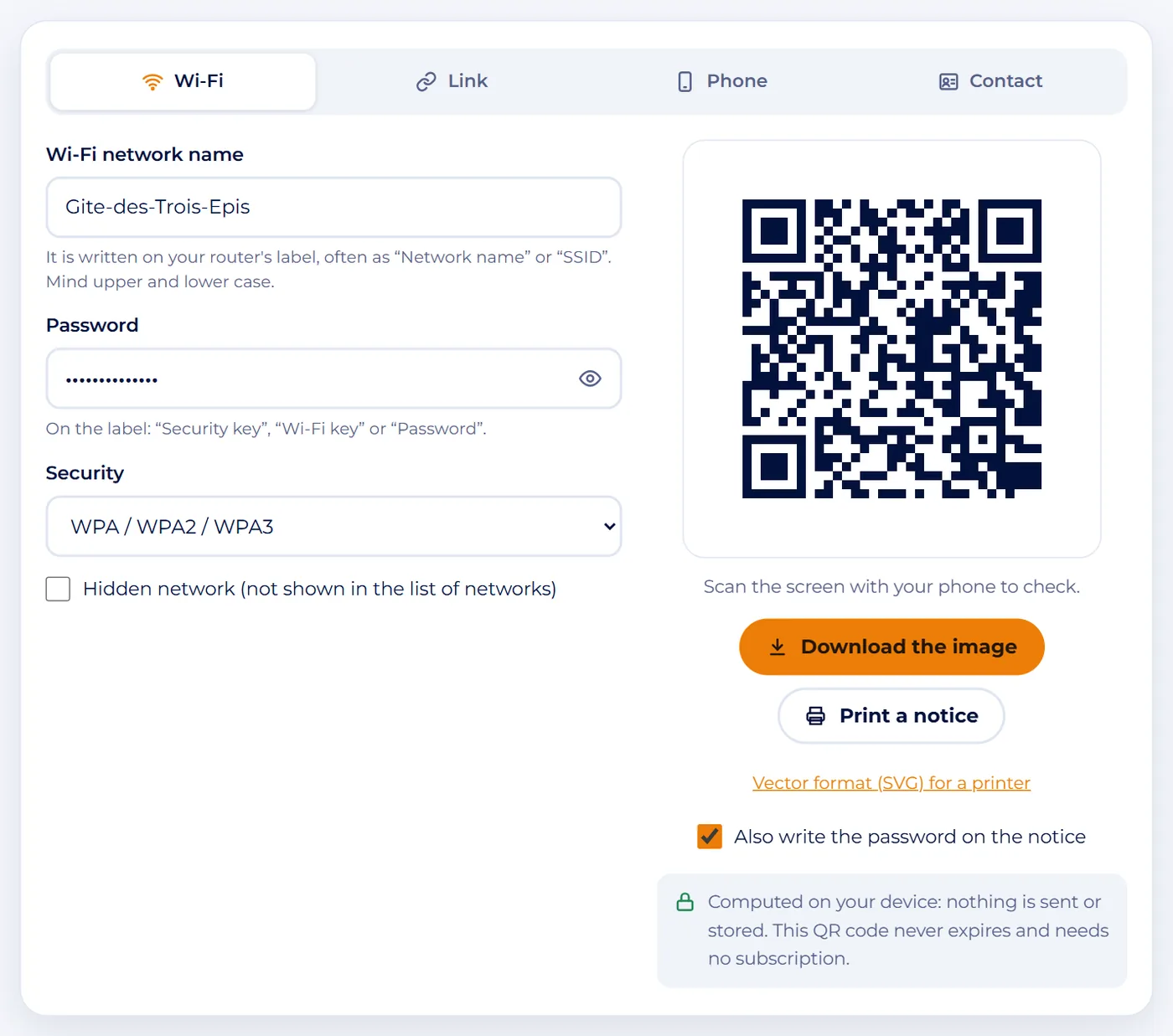
Screenshot : QR code TipOne wrong character is enough to block the connection: on labels, the digit 0 and the letter O look very much alike.
Test it with your phone
- When the message “Scan the screen with your phone to check.” appears, point your phone's camera at the screen.
- If the phone offers to join the network and connects, the code is correct.
- For a real test, use a phone that does not know this network yet, or first choose “Forget this network” in its Wi-Fi settings.
Download or print
You have three options:
- Download the image: a good-sized PNG file to drop into a Word document, Canva or a welcome booklet.
- Vector format (SVG) for a printer: a file that stays sharp at any size, for a poster or an engraved plaque.
- Print a notice: an A4 page ready to put up, with the QR code, the network name and simple instructions.
The Also write the password on the notice box is ticked by default. That helps computer users, since computers do not scan QR codes.
TipLaminate the notice with a matt film rather than a glossy one: reflections make scanning harder.
Create a contact card or a link too
- The Contact tab makes a business card you can scan.
- Fill in First name, Last name and Company or association, then at least one way to get in touch: Phone, E-mail or Website.
- When scanned, the phone offers to save the card to its contacts.
- The Link tab leads to a page (menu, sign-up form, review page) and the Phone tab offers to call a number.

Screenshot : QR code TipThis QR code never expires: it works for as long as the information inside it stays true.
All done: over to you.
Module 3
Real-life examples
A holiday cottage welcoming guests
At Holly Cottage, guests asked for the Wi-Fi password on every arrival. The owner turned on her router's guest network, created the Wi-Fi QR code and printed the notice. She put it up in the hallway and added it to the welcome booklet.
Every autumn she changes the guest network password, makes a new QR code and reprints the notice. Her own network stays exactly as it is.
A club at a Christmas market
Clara's Gardens, a local gardening club, runs a stall. A Link QR code leads to the membership page of their website, and a Contact QR code is printed on the back of their flyers. Because the link points to their own site, the club can update the page next year without reprinting a single flyer.
A suspicious QR code on a parking meter
A sticker on a parking meter offers to “pay faster by QR code”. The phone shows an unknown address with no link to the local council. The right reflex: do not pay, use the official app or the meter's own keypad, and report the sticker to the council. If you are unsure about an address, paste it into our suspicious link checker.
Common mistakes
- Copying the password with one wrong capital letter: the phone then refuses to connect without saying why.
- Using a free “dynamic” QR code service for printed material: the code may stop working when the trial ends.
- Forgetting to make a new QR code after changing the router's password.
- Printing a code that is too small, with no white margin, or light on a dark background.
- Paying after scanning a QR code stuck on a parking meter or charger without reading the address shown.
The essentials
- A QR code is text written in small squares: the phone reads it without downloading anything.
- A static code never expires; a dynamic code depends on a provider, and often on a subscription.
- For visitors' Wi-Fi, use your router's guest network and test the code before printing.
- Dark on light, a white margin, about 1 cm of width per 10 cm of distance.
- Before paying after a scan, read the address: one fake sticker is all it takes.
Test yourself
A few questions to check that everything is clear.