What you will learn
- Choose the details a signature really needs and leave out the rest.
- Understand why the logo must be an online image, and why it is sometimes blocked.
- Create a signature that reads well everywhere, including in dark mode.
- Install it in Gmail, Outlook or Apple Mail.
Module 1
E-mail signatures explained in 5 minutes
What a good signature contains
A signature has one job: to tell the reader who you are and make it easy to reach you. Four to six lines are enough:
- your first and last name;
- your job title and the name of your organisation;
- a phone number, which can be dialled with one tap on a mobile;
- your website address.
A logo, a postal address, two or three social networks or a button (“Book an appointment”, “Donate”) are extras. Only add them if they are genuinely useful to the people you write to. Your e-mail address still helps when a message is forwarded, but there is no need to make it stand out.
A signature is not a brochure: the shorter it is, the more likely it is to be read.
Why the logo must be an online address
When you paste an image from your computer into a signature, the mail app sends it as an attachment with every message. The result: files called “image001.png” pile up in your contacts' inboxes, and sometimes the logo vanishes altogether.
The right way is to put the logo online, for example on your website or in the WordPress media library, then give its address. It starts with https:// and often ends in .png or .jpg. The recipient's mail app fetches the image when they open the message.
Avoid Google Drive, Dropbox or Facebook links: they lead to a viewing page rather than straight to the image, or ask the reader to sign in. Keep the logo light as well, about 100 to 150 pixels wide.
Tables and inline styles: the language of mail apps
A modern web page is laid out with style sheets, presentation rules kept in a separate place. Mail apps are far more cautious: for security reasons, many of them strip out or ignore those rules. Classic Outlook for Windows even displays e-mails using the Word engine, which only understands part of HTML.
That is why reliable signatures are built the old-fashioned way: tables to place the logo next to the text, and inline styles, meaning the colour and size are written directly on each element. A web developer may find it clumsy, but it is what looks the same in Gmail, Outlook, Apple Mail and Thunderbird.
The same goes for fonts: Arial, Verdana, Trebuchet and Georgia are installed everywhere. An unusual font would simply be replaced by another one on the recipient's screen.
Blocked images and dark mode
Some mail apps, Outlook on a computer in particular, block images until the recipient clicks to show them. Your logo then appears as an empty box. The golden rule: no important information should exist only inside the image. Your name, phone number and website must be written as text.
Dark mode, now very common on phones, hides another trap. The mail app lightens dark text so that it stays readable on a black background, but it leaves images alone. A black logo on a transparent background then becomes invisible. Prefer a logo on a white background.
This is also why a signature made of one single large image is a bad idea: unreadable when blocked, and often treated as suspicious by spam filters.
Useful details for a business or a club
In many countries, companies must show certain details in their business correspondence. In the UK, for example, a limited company is expected to give its registered name, company number, place of registration and registered office address. Many businesses therefore add these to the signature of e-mails sent to customers. Ask your accountant what applies to you.
For a club or charity, one line is often enough, such as a registered charity number or the name of the umbrella body you belong to. The “Small line at the bottom” field in our tool is made for this, or for your opening hours.
On the other hand, ten-line confidentiality disclaimers are rarely read and make every message heavier.
Key takeawayA good signature is short, written as text, with a light logo hosted online: it stays readable even when images are blocked or the screen switches to dark mode.
Words to know
- HTML signature
- A formatted signature (colours, bold, logo, links) written in the language of web pages.
- Image address
- A web address that leads straight to the image file, for example https://example.com/logo.png.
- Inline style
- Formatting written directly on each element (colour, size). It is the only kind every mail app respects.
- Dark mode
- A display with light text on a dark background. The mail app then adjusts text colours, but not images.
- .htm file
- A web page saved on your computer. Classic Outlook for Windows stores its signatures in this form.
- Spam filter
- A system that moves doubtful messages to the junk folder. A signature made of one large image can set it off.
Module 2
Create your signature step by step
Fill in your details
- Open the e-mail signature generator.
- In the You section, enter First name, Last name, Job title and Company or association.
- In Contact details, fill in whatever is useful: Phone, Mobile, E-mail, Website, Address.
- Until you type a name, the preview shows an example.
- Fields you leave empty do not appear in the signature.
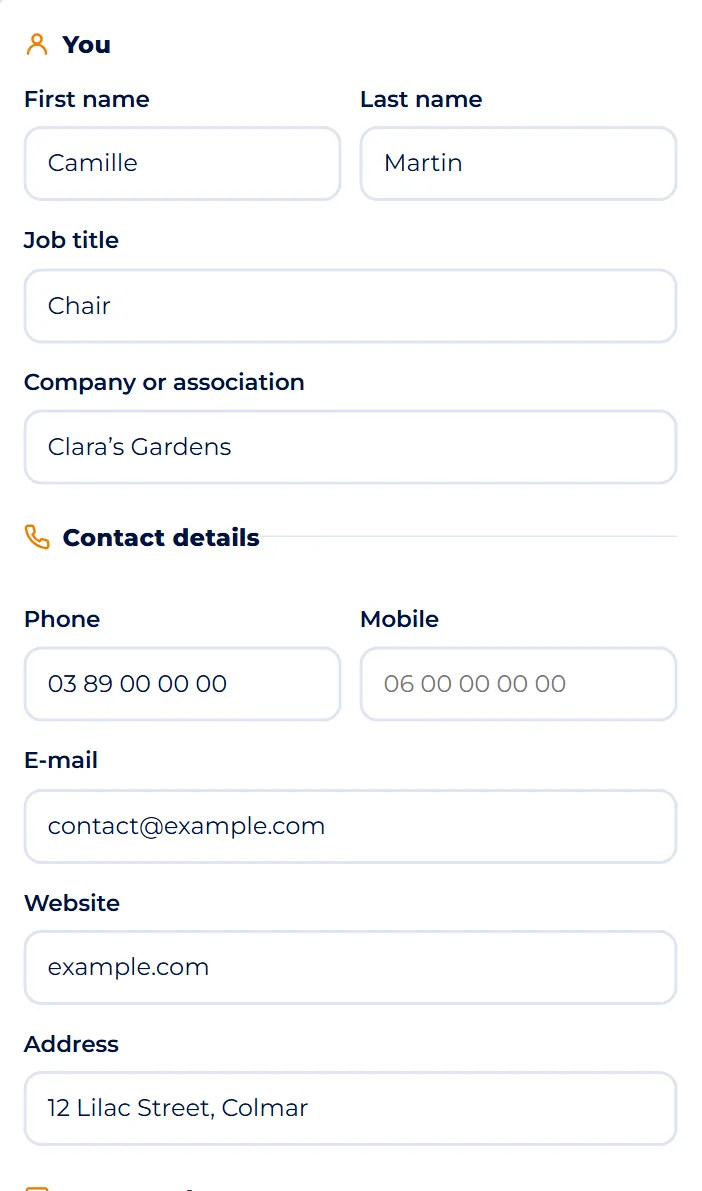
Screenshot : E-mail signature TipYour details stay on this device for next time. On a shared computer, click “Clear everything” before you leave.
Add your logo or photo
- In Logo or photo, paste the image address into the Image address (optional) field.
- To find it, go to your website, right-click the logo and choose “Copy image address”.
- Set the Image width (100 to 150 px works well) and tick Round image (for a photo of you) if it is a portrait.
- If a warning appears under the preview (an http:// address, a Google Drive link…), follow its advice.
TipNo website? Leave the field empty: you can add the logo afterwards with the “Insert image” button in Gmail's signature editor.
Social networks, button and small print
- In Social networks and button, enter your LinkedIn, Facebook, Instagram or YouTube pages: only the ones you keep up to date.
- Open Add a button (booking, donation, sign-up…) to show a coloured button, then fill in Button text and Button link.
- The Small line at the bottom (optional) field is the place for your opening hours or a short legal line.
Choose the look
- In Appearance, there are three layouts: Logo on the left, Logo on top and Compact, no image.
- Then pick a Colour from the swatches, or your own with the colour picker, and a Font: Arial, Verdana, Trebuchet or Georgia.
- If the colour is too light, the tool warns you: pale yellow or light grey text is hard to read on white.
TipUse the main colour of your logo or website: the signature instantly looks more professional.
Check the preview and copy
- The Preview shows the signature under a sample message.
- When the line “Ready: copy it, then paste it into your mail app.” appears, click Copy the signature.
- Under that button, two links cover special cases: Copy the HTML code (Thunderbird, Brevo) and Download the .htm file (classic Outlook).
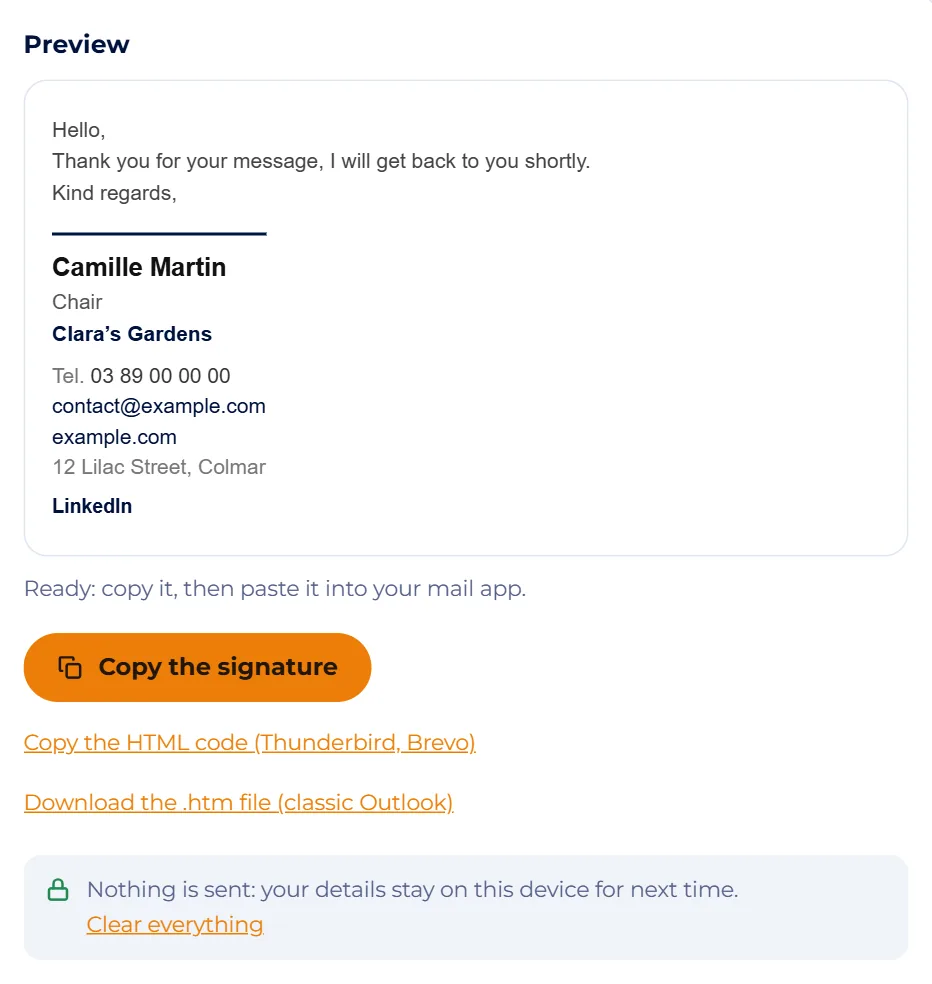
Screenshot : E-mail signature Paste it into your mail app
- Gmail: gear icon › See all settings › General tab, Signature section, Create new, then paste (Ctrl+V).
- Choose it for new e-mails and replies, then click Save changes at the very bottom.
- A picture guide is available in French: Gmail: write an e-mail and create your signature.
- Outlook (new Outlook, Outlook.com): Settings › Accounts › Signatures.
- Apple Mail: Mail › Settings › Signatures, unticking “Always match my default message font”.
- Other cases are covered under the tool, in “Install the signature”.
TipSend yourself a test message and open it on your phone too: it is the best check there is.
All done: over to you.
Module 3
Real-life examples
The chair of a cycling club
Alex, chair of Friends of Cycling, writes to members and to the local council from Gmail. Alex picks the Logo on the left layout, pastes the address of the logo stored in the club's WordPress media library, and adds the Facebook page and a “Join the club” button. At the bottom, a small line gives the club's registration number.
A tradesman who replies from his phone
A carpenter reads and sends his e-mails on his phone, often in dark mode. He chooses Compact, no image: name, trade, mobile number and website on three lines. Nothing can be blocked, nothing disappears on a black background, and customers call him with a single tap on the number.
An office still using classic Outlook
In a small business running classic Outlook for Windows, the logo did not show after pasting. The fix: Download the .htm file (classic Outlook), place it in Outlook's signatures folder, then restart Outlook. The exact folder path is given under the tool, in “Classic Outlook for Windows”.
Common mistakes
- Pasting a logo from your computer: it goes out as an attachment with every message, or disappears.
- Putting your name or phone number only inside the image: if images are blocked, the reader sees nothing.
- Writing a fifteen-line signature with a quote, a banner and a long confidentiality disclaimer.
- Using a dark logo on a transparent background: it vanishes in dark mode.
- Giving a Google Drive or Dropbox link as the image address: it leads to a page, not to the image.
The essentials
- Four to six lines: name, job title, organisation, phone, website.
- The logo must be an online image (https://), light, about 100 to 150 pixels wide.
- Important details always as text, never only inside an image.
- Tables, inline styles and common fonts make the signature look the same everywhere.
- Test by sending yourself a message, on a computer and on a phone.
Test yourself
A few questions to check that everything is clear.