What you will learn
- Explain what DNS is and who does what: registrar, web host, e-mail provider.
- Read the main records: A, AAAA, CNAME, MX, NS and TXT.
- Check that your e-mail is protected by SPF and DMARC.
- Understand TTL and propagation so that moving host goes smoothly.
Module 1
Understand DNS in 5 minutes
The Internet's phone book
On the Internet, every server is reached through an IP address, a string of numbers such as 203.0.113.10. Nobody remembers those numbers: we type names instead, like example.com.
The DNS (Domain Name System) links the two. It is the Internet's phone book: you look up a name, it gives you the number. Every time you open a website or send an e-mail, your device quietly asks a resolver, usually the one in your router or at your provider. The resolver asks the servers in charge of the domain, then keeps the answer in memory for a while.
All this takes a few milliseconds. But if the directory contains a mistake, your website cannot be found or your e-mails get lost, even though the site and the mailbox themselves work perfectly.
Domain, DNS, host: who does what?
Many small organisations mix up three services, which may sit with three different companies.
- The registrar rents you the domain name, for example
gite-trois-epis.fr, year after year. OVHcloud, Gandi, IONOS and Hostinger are registrars. - The DNS provider keeps the “zone”, the domain's settings sheet, on its NS servers. Very often it is the registrar itself.
- The web host and the e-mail provider run the website and the mailboxes. The DNS zone merely says where they are.
Example: a domain rented from Gandi, a website hosted at o2switch and e-mail at Google. Changing web host does not change the domain name: you simply edit the DNS zone so that it points to the new server.
The records worth knowing
The DNS zone is a list of lines called records. Each one has a type:
- A: the website server's IPv4 address. AAAA: the same in IPv6, the newer address format.
- CNAME: an alias.
www.example.commay point toexample.com, or to the name of a platform such as Wix or Shopify. - MX: the servers that receive the domain's e-mail, each with a priority (the lowest number is tried first).
- NS: the servers that hold the zone itself.
- TXT: free text, used to prove you own the domain (Google, Microsoft) or to protect your e-mail (SPF, DMARC).
For a small business website with e-mail, about ten lines are often enough. But one wrong MX line, and no e-mail arrives at all.
SPF and DMARC: protecting your e-mail
Anyone can write an e-mail showing your address as the sender. Two TXT records make this kind of impersonation harder.
- SPF publishes the list of servers allowed to send e-mail for your domain. It starts with
v=spf1, for examplev=spf1 include:_spf.google.com ~all. Only one SPF per domain: with two, the check fails. - DMARC, placed on the name
_dmarc.example.com, tells mail providers what to do with a message that fails the checks:p=none(monitor only),p=quarantine(send to spam) orp=reject(refuse it).
A third setting, DKIM, signs each message: your e-mail provider gives you its value. Since 2024, Gmail and Yahoo, followed by Microsoft, require these protections from bulk senders, and poorly configured messages land in spam more often. Start with p=none, check that your genuine mail gets through, then move to quarantine.
TTL and propagation: why you have to wait
To save time, resolvers keep each answer in memory. For how long? That is the TTL (Time To Live), set in seconds on every record: 3600 means one hour, 86400 one day.
As a result, when you change a line, resolvers that still hold the old answer keep giving it out until its TTL runs out. This is called propagation. Depending on the settings, it takes from a few minutes to 48 hours. In the meantime, some visitors see the old site and others the new one.
The right habit before moving a website: lower the TTL to 300 seconds (5 minutes) a day or two beforehand, make the change, check it, then raise the TTL again. And do not cancel the old hosting on the same day: keep it for at least a week.
Key takeawayDNS is the directory that says where your website (A, CNAME) and your e-mail (MX) live. Every change takes time to spread (TTL), and SPF and DMARC protect your name against fake e-mails.
Words to know
- Domain name
- The readable address of a website or mail service, such as example.com. It is rented yearly from a registrar.
- IP address
- The number of a device or server on the Internet, for example 203.0.113.10 in IPv4. IPv6 uses longer addresses.
- Registrar
- The company from which you rent your domain name.
- DNS zone
- All the settings of a domain: the list of its records, held by the NS servers.
- Resolver
- The server that looks up DNS answers for your device and keeps them in memory. Often it is your router's, or a public service such as 1.1.1.1.
- TTL
- How long, in seconds, a DNS answer may be kept in memory before it is requested again.
- Impersonation (spoofing)
- Sending an e-mail while pretending to be someone else, for example with a fake invoice. SPF and DMARC make it harder.
Module 2
Check a domain step by step
Type the domain name
- Open the DNS lookup.
- In the field, type the domain name, for example
example.com. - You can also paste a full website address, or even an e-mail address: the tool keeps only the domain name.
- Press “Search”.
- To try it out, tap one of the examples below the field:
ressources.online,gmail.comor the IP address8.8.8.8.

Screenshot : DNS lookup TipType the domain without “www” to see its e-mail settings: MX lines are set on the bare domain.
Read the plain-language summary
The result opens with a line-by-line summary, with a green tick when all is well and a warning triangle when a setting is missing:
- “The website answers at…”: the site's IP address, and the server, often the host's;
- “E-mail is received by…”: the e-mail provider, for example Google, Microsoft or OVHcloud;
- “DNS settings are managed by…”: the company that holds the DNS zone;
- “SPF present” or “No SPF”, then the DMARC status.
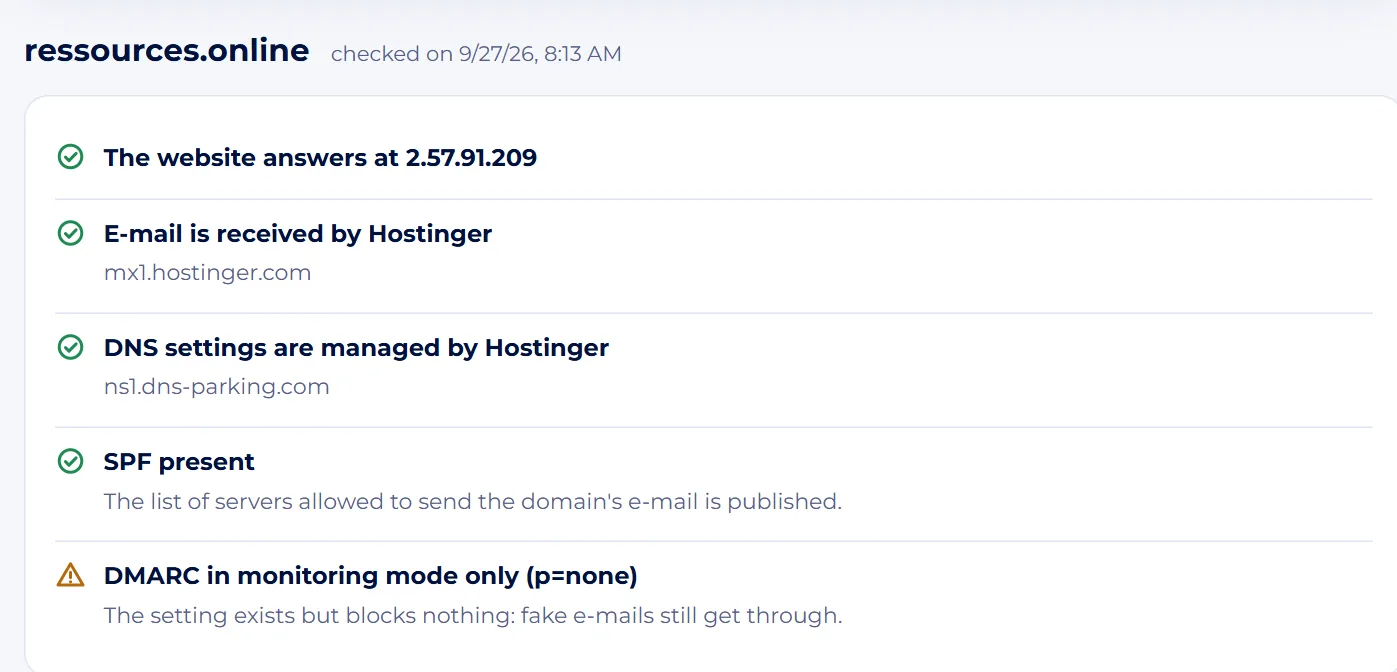
Screenshot : DNS lookup TipYou can also type an IP address: the tool then finds the name linked to it, if there is one.
Check your e-mail protection
- Look at the last lines of the summary.
- “DMARC active (p=quarantine)” or “(p=reject)”: fake e-mails sent in your name go to spam or are refused.
- “DMARC in monitoring mode only (p=none)”: the setting exists but blocks nothing.
- “No SPF” or “No DMARC”: fix it as soon as the domain sends e-mail.
- These settings are added to the DNS zone, at the company named in the line “DNS settings are managed by…”.
- Your e-mail provider gives you the exact SPF value to copy.
TipThe tool does not check DKIM, because its name depends on each provider: ask yours to confirm that it is switched on.
Check that the settings have spread
- When the domain has a website, the section “Are the settings fully propagated?” compares our server's answer with those of major public resolvers: Google (8.8.8.8), Cloudflare (1.1.1.1) and AdGuard DNS.
- If they all give the same address, the change has spread everywhere.
- If some do not know the name yet, a recent change is still spreading.
- Different addresses are not necessarily a problem: large websites and many hosts spread their visitors over several servers.
Look at the technical details and share
- “Technical details” lists every record found, with its Type, Value and Lifetime: this is the TTL, shown in seconds, minutes, hours or days.
- There you can see, for instance, the MX priorities or the full text of the SPF and DMARC.
- The “Copy the link to this result” button copies an address that runs the same lookup again.
- Send it to your web designer or host: they will see exactly what you see.
TipAfter a change, run the lookup again from time to time: the lifetime shown tells you how long the old value may still be around.
All done: over to you.
Module 3
Three everyday situations
The website vanished after moving host
The gardening club Les Jardins de Clara has just moved to a new host. Since then, some members see the old site and others an error page. The treasurer looks up jardins-clara.fr, then www.jardins-clara.fr: the first points to the new server, the second still to the old one. He fixes the www line in the DNS zone, then follows the section “Are the settings fully propagated?” until all the servers give the same answer. The old hosting stays active for one more week, just in case.
The holiday cottage's quotes land in spam
The Gîte des Trois Épis sends its quotes from contact@gite-trois-epis.fr, but several customers find them in their spam folder. The lookup shows “No SPF” and “No DMARC”. The owner asks her e-mail provider for the SPF line to add, turns on the DKIM signature it offers, then publishes a DMARC record with p=none. Three weeks later all her genuine mail gets through, so she moves DMARC to p=quarantine. To spot fake messages imitating a brand, see also the tool “Is this link a scam?”.
A brand-new domain name
A bakery has just registered bakery-example.com. That evening, the lookup replies “This domain does not exist, or it has no DNS settings”. No need to worry: a brand-new domain can take a few hours to appear. The next day, the line “DNS settings are managed by…” shows up, but so does “No website is declared for this name”. All that is left is to add the A record supplied by the web host. Once the site is live, its complete diagnosis confirms it is secure and well presented in Google.
Common mistakes
- Cancelling the old hosting on the day of the move: keep it for at least a week, until propagation is over.
- Publishing two SPF records: you need exactly one, covering all your sending services.
- Deleting or changing the MX lines while setting up the website: this is the most common reason e-mail stops arriving.
- Jumping straight to DMARC p=reject before declaring all your sending tools (website, newsletter, invoicing).
- Worrying after one hour: depending on the TTL, a change can take up to 48 hours to spread everywhere.
The essentials
- DNS turns domain names into addresses and says where to deliver e-mail.
- A and CNAME lead to the website, MX to the mailboxes, NS to the zone manager, TXT to verifications.
- SPF and DMARC protect your name against fake e-mails and help your genuine e-mails arrive.
- Lower the TTL before moving a website, and keep the old hosting until propagation is over.
Test yourself
A few questions to check that everything is clear.